






How to Recover MySQL/MariaDB Tables: Step-by-Step Guide
Lost access to your MySQL or MariaDB tables? Don’t worry — recovery is possible. This guide walks you through MySQL/MariaDB table recovery using your .ibd and .frm files.
Prerequisites
- Have the .ibd and .frm files for the affected tables ready.
- Set up a temporary environment running the same MySQL/MariaDB version as your original database.
Before you begin, it’s a good idea to make a fresh backup.
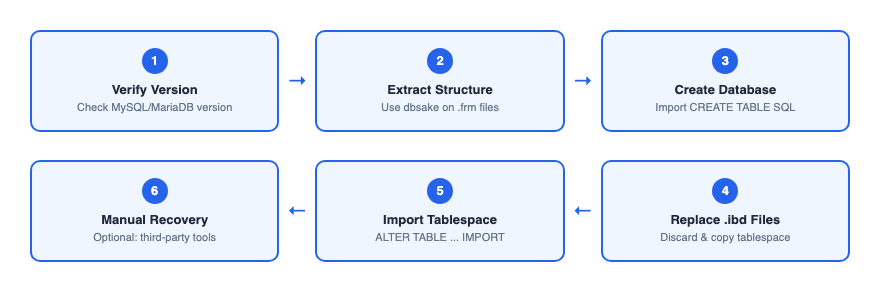
Quick Reference: the diagram above summarizes the table recovery process at a glance.
Step 1: Verify Database Version
To confirm your MySQL/MariaDB version, run:
cat /path/to/mysql-dir/mysql_upgrade_infoMake sure your recovery environment matches this version to avoid compatibility issues.
Step 2: Recover Table Structure from .frm Files
Use dbsake to extract the table structure from .frm files. This tool lets you retrieve the CREATE TABLE statement directly from a .frm file.
Download and set up dbsake:
curl -s get.dbsake.net > dbsake
chmod u+x dbsake
Extract the CREATE TABLE statement:
./dbsake frmdump table_name.frm > table_name.sqlRepeat for all .frm files you need to recover.
Note: If you can’t extract the structure with dbsake, see Step 6 for an alternative approach.
Step 3: Create a New Database
With your extracted CREATE TABLE statements, recreate the tables in a new database:
CREATE DATABASE recovered_db;
USE recovered_db;
Then, import each SQL file:
mysql -u root -p recovered_db < table_name.sqlRepeat for all tables you wish to restore.
Step 4: Replace .ibd Files
Log in to MySQL and discard the current tablespace:
mysql -u root -p
USE recovered_db;
ALTER TABLE table_name DISCARD TABLESPACE;
Repeat for each table you are restoring.
Next, copy the .ibd files from your backup into the MySQL data directory:
cp /path/to/backup-dir/*.ibd /path/to/mysql-dir/Ensure the correct ownership and permissions:
chown mysql:mysql table_name.ibd
chmod 660 table_name.ibd
Step 5: Import the Tablespace
After placing the .ibd files, import the tablespace back into MySQL:
ALTER TABLE table_name IMPORT TABLESPACE;Repeat for all tables you are recovering.
Note: Replace the following placeholders with your actual paths and names:
/path/to/mysql-dir/— The MySQL data directory (e.g., /var/lib/mysql/)/path/to/backup-dir/— The directory where your backup .ibd files are storedtable_name— Use the name of the table being restoredrecovered_db— Insert the name of the database being recovered
Step 6: Manually Recover Table Structure (Optional)
If you're unable to extract the table structure with dbsake, you can use a third-party tool such as Stellar Repair for MySQL.
- Download and install the free version of Stellar Repair for MySQL from the official website.
- Launch the application and select the database directory path, then click OK.
- Select the table you want to restore, then click Properties to view its structure.
- Using the available data, manually recreate the table structure and import it into the database as done in Step 3.
Conclusion
MySQL or MariaDB table recovery using .ibd and .frm files is a practical solution when disaster strikes. By following the steps above, you can restore your data efficiently and with confidence. Always work on a backup, match your MySQL/MariaDB versions, and consider using specialized tools for complex recoveries.
Further Reading: Export and Import MySQL/MariaDB Databases via Command Line